Tampilkan postingan dengan label Sistem Operasi. Tampilkan semua postingan

Kamis, 13 Oktober 2011

Android Emulator : Bluestack vs Youwave

11 Oktober itu akhirnya datang, waktu yang dijanjikan developer Bluestack untuk merilis software Alpha nya. Di indox Yahoo mail ada tulisan :

BlueStacks App Player (alpha)

This is an alpha release so please give us lots of feedback! 
Use the support tab on our Facebook page to share your ideas.
Akhirnya dengan sisa pulsa Fun Midnight Flash Telkomsel, 117 MB file installer msi sukses terdownload, meski 3 kali di-cancel dan gagal.

Buat kalian yang kurang ngerti android ato pingin banget nyicip android, anda bisa pake software BlueStacks App & YouWave. cuma dengan software ini anda tidak perlu mengisntall OS android di bios anda ataupun memiliki device android, cukup dengan pc windows anda, anda bisa mencoba dan menginstall aplikasi2 android yang sudah anda download sebelumnya. kalo mau pake yg BlueStacks, anda bisa install sendiri file apk anda dgn cara open with>cari Hd Apk Handler.exe yg ada di folder BlueStacks di program file, nanti scr otomatis akan terinstall dan bisa lgsg dicoba. kalo pake YouWave, itu cuma trial slama 4 hari, dan maap serialnya belum nemu *hehe.
bluestacks-1318332264
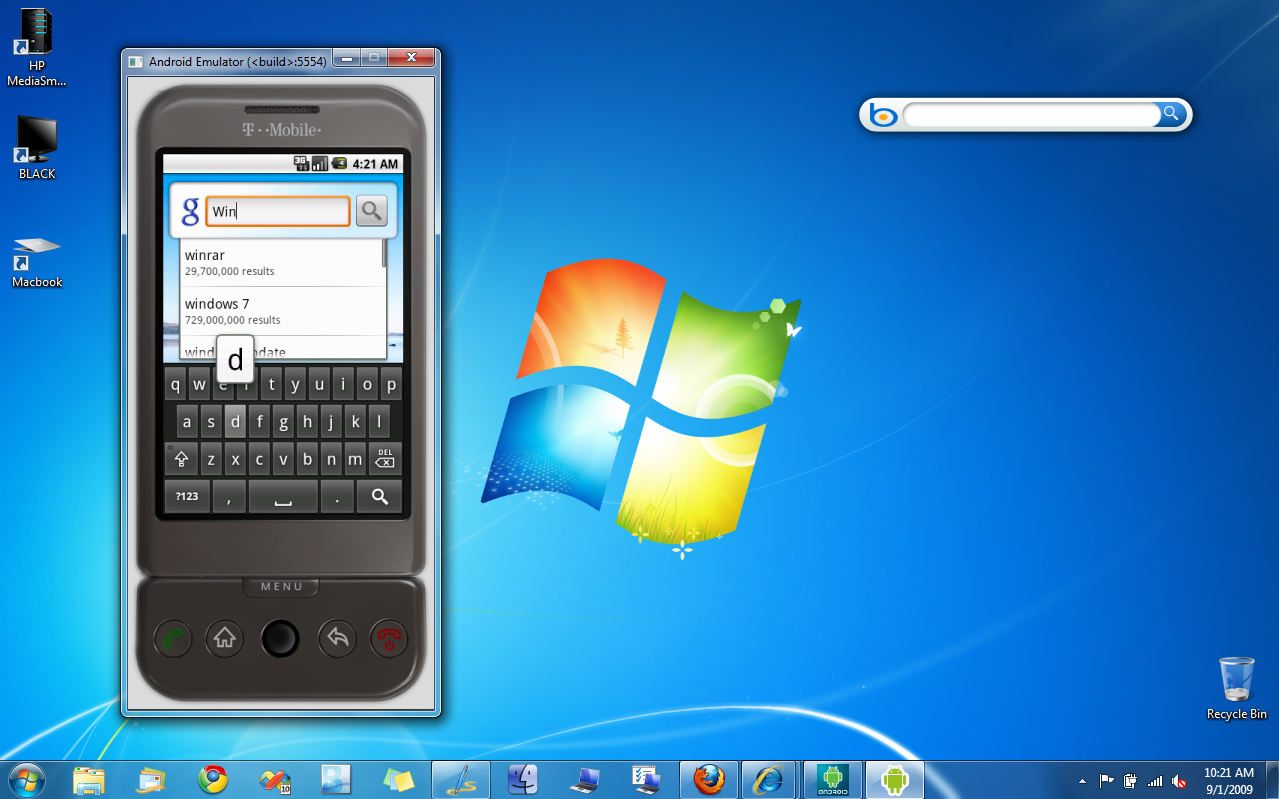
android-desktop_thumb
[ http://ludhpraditto.wordpress.com/category/alhasil/tech-journale/ ]

Sabtu, 23 Juli 2011

Download Google Android Emulator

Dalam situasi menunggu Bluestack (konon sesumbarnya bisa berdampingan baik dengan windows sehingga bisa menjalankan aplikasi android dengan lancar dalam lingkungan windows) bisa didownload dan dicoba, saya tetap berusaha mencari emulator Android yang mudah diinstall dan tanpa ribet menjalankannya. Akhirnya menemukan juga file yang dimaksud. Emulator ini mudah digunakan dan lumayan cepat.
Do you want to test drive Google Android without having to buy a phone? Google SDK package allows developers to see all android features and let them use the whole interface.
If you don’t want to be bothered by the complex Google SDK Package, then RedmondPie reports that Haseeb a member at XDA-Developers forum has managed to create an executable file by packaging and configuring the Google SDK. Which means that you can now use the complete emulator in a single-click without having to install Google SDK package.
All you have to do is extract the .rar archive, rename extracted folder to “Android-Emulator”, Download and Copy fixed exe files in it, and then finally run it. These steps are rather complicated and confusing. So instead of following these steps, I have provided the direct link to download Android Emulator, just extract the zip archive and run the executable file. That’s it.
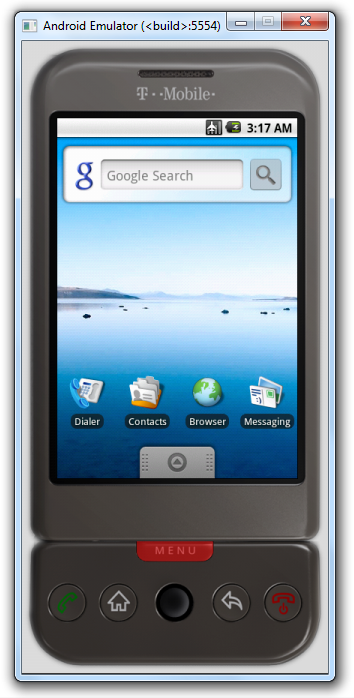
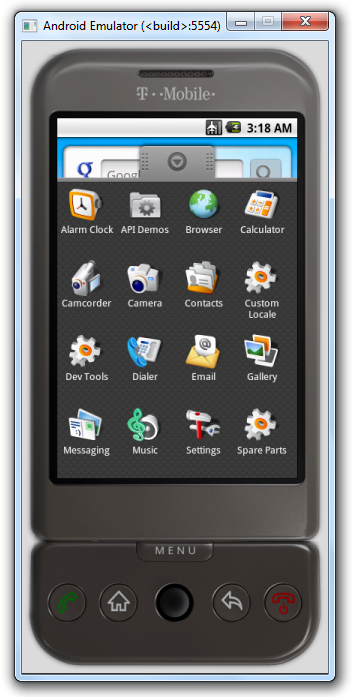
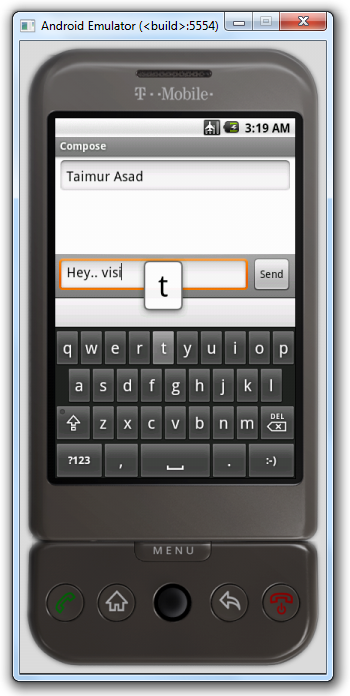
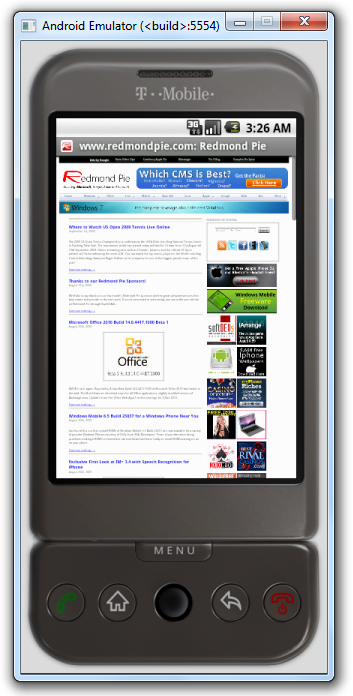
Android Emulator for Windows Google Android Menu
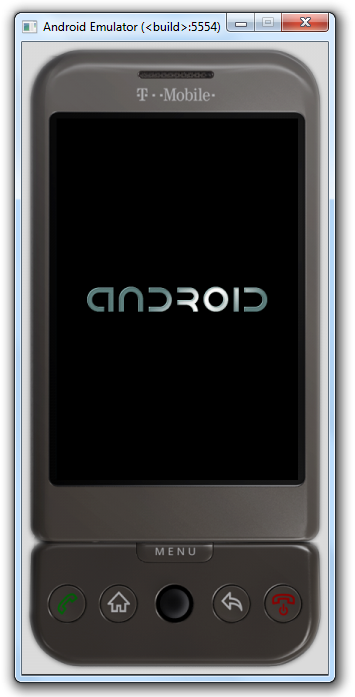
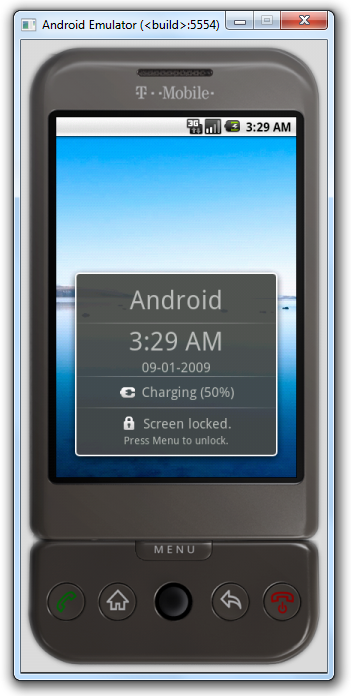
android call android emulator main
Download Android Emulator 1.5 for Windows (57 MB Hosted on AddictiveTips)
Enjoy!


XDA-Developers forum member xda2_haseeb has managed to extract and run AndroidEmulator on Windows which comes as a part of Google Android SDK package. For those of you who want to take Android on a ride for general OS look and feel can use this standalone Android Emulator which is patched to run on a Windows PC as a standalone app without having to download and install the complete Android SDK.
Android Emulator for Windows Android Emulator for Windows
Android Emulator for Windows
Android on Windows 7
Installation instructions for standalone Android Emulator on Windows
1. Download Android Emulator v1.5 for Windows. 
2. Extract the contents of the .rar file. 
3. Now rename the extracted folder to "Android-Emulator". 
4. Download the patched executable files from here. 
5. Copy/Paste these patched files into the newly named “Android-Emulator” folder.
That’s it! You can now test and run the complete emulated mobile Android OS on your computer without having to download and install the SDK. You can even install Android compatible apps on it. Check out this link for more on installing apps and moving files on and off the phone. I have tested it on Windows 7 x64 and it works flawlessly on it. Now if only someone could come up with a way to install HTC Hero’s Sense UI on it!
Download Android Emulator 1.5 for Windows

Selasa, 19 Juli 2011

HAIKU-OS Alpha 3 LiveCD : Sistem Operasi Multimedia Gratis dan Ringan


Tak sengaja mendapati iklan MIDNIGHT FLASH UNLIMITED nya Telkomsel, akhirnya dengan merelakan pulsa 25 ribu, modem Etisalat 1550E dengan memakai softwarenya modem Sun Broadband dan rela menunggu hadirnya tengah malam,  kesampaian juga mendownload HAIKU-OS Alpha 3 sebesar 230-an MB zipped dalam kurun waktu 2 jam. Namun setelah diekstrak menjadi 550-an MB. Dibantu dvd ekternal Samsung, file iso cd tersebut terbakar dengan sempurna dan bisa diboot dengan lancar tanpa pesan yang "aneh-aneh" di Netbook Advan A1N-70T 1,6 Ghz.

Haiku, sebelumnya dikenal sebagai OpenBeOS, adalah sebuah proyek sistem operasiopen source untuk menciptakan Be Operating System pada komputer x86 dan PowerPC. Dimulai sebagai "OpenBeOS" pada 2001 setelah Be dibeli oleh Palm, Inc. dan BeOS tidak lagi dilanjutkan. Pada 2004 nama baru dipilih untuk menghindari pelanggaran hak nama Palm. Proyek ini dikendalikan oleh Haiku Incorporated, sebuah perusahaan nirlaba di New York.

Setelah masuk dan mencicipi OS baru tapi dengan hati lama (BeOS), akhirnya alif dibuat kagum dan buas eh puas... Hanya aplikasi Office yang masih kurang, itupun sebetulnya bisa ditambal dengan Gobe Productive (sayang masih berbayar). Untuk urusan multimedia, file gambar standar bisa dibuka dengan cepat, bahkan file audio dan video milik saya hampir tidak ada yng tidak bisa dibuka dan dinikmati. Maklum file sekelas MP3, MP4, 3GP, Avi, MPG, Mov, MKV, RMVB, FLV dan lainnya sudah built in codec di OS ini mungkin.

Sayang sekali aplikasi penangkap screenshoot bawaan tidak berjalan dengan baik, sehingga alif hanya bisa memperlihatkan Haiku-OS berjalan diatas Qemu nya MobaliveCD 2.1.

Untuk lebih mengenal Haiku-OS :

  • Official Haiku Website
  • Haiku News (formerly The BeOSJournal) Focuses on Haiku OS news reporting, interviews, application reviews, and community events, in addition to BeOS related interests.
  • Haiku Wiki
  • HaikuHost.com Provides mirrored downloads of various "unofficial" Haiku builds; updated hourly.
  • HaikuBounties A site offering bounties to further the development of Haiku.
  • IsComputerOn A BeOS news site, focusing predominantly on Haiku.

Senin, 18 Juli 2011

LiveCD Android v0.3 for PC


LiveAndroid is a disk image LiveCD operating system Google Android. Just record the image on the disc, placing it in the CD-ROM drive and restart your computer and you can use Android, without installing it and not touching any files on your computer

Features:
  • * OpenDNS added
  • * Audio support
  • o VirtualBox ??? Intel 8???0 AC97
  • o VMware ??? Ensoniq AudioPCI 1371/1373
  • * SD card support (512M)
  • * Ethernet (DHCP)
  • * Mouse wheel support
  • * High-resolution support (800*600, 1024*768)
  • * New Apps added
  • o Software Directory
  • o AndroidVNC
  • o PilotLines, Craigs Races, Super Mario
  • * more net card driver added
  • o Amd PCNET32 PCI
  • o Broadcom 440x/47xx
  • o CS89x0
  • o Intel PRO/100+
  • o NE2000/NE1000
  • o Realtek RTL-8129/8130/8139
http://www.filesonic.com/file/1050030421/B-03LCDA.rar

FlashBoot v2.1c Full Version


Description:
FlashBoot is a tool to make USB disks bootable. Its primary focus are USB Flash disks, but other types of USB devices are supported as well. Making disk bootable involves formatting and copying operating system files to it. Different operating systems are supported: Windows 7/Vista, Windows XP, SysLinux-based disks, GRUB4DOS disks, Linux kernel etc.
You may create blank bootable USB flash with minimal set of system files and then manually tune it for your needs, or convert a full-featured bootable CD-ROM or floppy disk to bootable USB Flash keeping all functionality.
Most known and popular FlashBoot feature is a convertion of Windows XP/Vista/7 installation CD/DVD into bootable USB disk, useful for Windows installation on netbooks and other devices without CD/DVD drive.
System requirements for FlashBoot 2.x:
  • BIOS which supports booting from USB devices
  • Operating system: Windows XP, Windows Vista, Windows 7, Windows Server 2003, Windows Server 2008, either x86 or x64 edition
  • 256 Mbytes of RAM
  • 30 Mbytes of disk space
Note:
Setelah instal selesai, copy file license_key.xml di dalam folder Keyfile ke dalam direktory instalasi Flashboot.
Official web Flashboot

DOWNLOAD
32MB | Dropbox
Password: gotechno.tk

Ghost Windows 7 Ultimate Lite Editions

Windows 7 Ultimate Lite Editions Review: Biasanya, Windows 7 OS akan mengambil sekitar 10 GB ruang ketika Anda selesai menginstal itu. Windows 7 edisi Lite hanya membutuhkan 2 sampai 6 GB setelah Anda selesai menginstal itu. Itulah ruang yang cukup bagi Anda untuk menginstal Windows 7 Ultimate Lite Editions pada drive 8 GB hard compact flash. Satu-satunya hal tentang Windows 7 Ultimate Lite Editions adalah bahwa beberapa fitur yang baru pada Windows 7 akan dihapus. Anda mungkin tidak memiliki mesin bicara yang memungkinkan Anda untuk mengontrol komputer Anda dengan suara Anda. Di sisi lain, Anda akan memiliki tema Windows 7 Aero kaca dan semua hal dasar dari Windows 7 Lite Editions. Tentu saja, Anda juga akan memiliki bagian-bagian inti baru yang unik untuk Windows 7 Lite Editions ketika Anda menginstal Windows 7 Lite Editions.

Termasuk:
  • Internet Explorer v8
  • Gadget untuk Windows 7
  • Windows media player
  • Windows Firewall
  • Parental Control
  • Driver bawaaan normal
  • Proses instalasi hanya 1,57 GB (termasuk paging dan file hibernate)
  • Image Viewer bekerja dengan baik
  • Peningkatan kompatibilitas dengan program dan game
Tidak termasuk:
  • Driver (printer, scanner, suara, fax)
  • Screen Savers
  • Wallpaper
  • Windows Media Center
  • Windows DVD maker
  • Tablet PC
  • Dukungan suara
  • Backup file
  • Tidak Perlu Paket
Minimum pencetakan persyaratan:
  • CPU: Intel Pentium 3 1,8 GHz
  • RAM: 128MB RAM
Cara Install:
  • Burn BOOTMENU.iso (ini disc 1)
  • Burn 02940.iso (ini disc 2)
  • Boot komputer dengan disk bootmenu dalam dan akan otomatis boot ke menu
  • Hit pilihan 3 dan itu harus dimulai Norton Ghost
  • Ini harus otomatis dari sana …
  • Ketika meminta untuk partisi lain kemudian masukkan disk 2 dan browsing jika tidak otomatis menemukannya dan terus
  • Akan memakan waktu sekitar 20 menit untuk menyelesaikan dan akan boot langsung ke Windows 7 setelah itu …
    Mb/128 138 Mb
DOWNLOAD | 800MB | Mediafire
PART1 - PART2 - PART3 - PART4 - PART5 - PART6

Kamis, 14 Juli 2011

Almeza MultiSet Professional v7.9.2

Almeza MultiSet Professional v7.9.2

Almeza MultiSet Professional v7.9.2 | 8.7 Mb


Almeza MultiSet - Leader in Unattended Installation of Windows and Software. Want to create a Windows installation disk or USB Flash Drive that will automatically install the OS Windows without asking questions about username, product key, time and locale settings? At the same time your favorite applications are automatically installed, the necessary keys are entered into the registry, drivers are updated, new patches (service packs) from Microsoft are installed. It's possible and you can do it easily with Almeza MultiSet.

Almeza MultiSet will automatically install all the applications you require, either onto your original computer or onto a new one. It's an ideal solution for rebuilding your systems quickly!

Create a bootable USB Flash Drive. You can use Almeza MultiSet Professional software to create a bootable USB Flash Drive for automatic installing Windows and software onto a computer.

Create a bootable automatic installation CD/DVD. You can use MultiSet software to create a universal disk for automatic installing software onto a computer using any media (CD/DVD/Flash/Hard Drive). Automatic Installation Anywhere!

Now you can install the programs in any location and as many times as you want - just insert the disk into the CDROM, DVDROM or FlashDrive, and MultiSet will undertake the complete installation procedure for you!

Do you want to automate installation of programs but have no time to learn how to write the necessary scripts? Do you prefer simple and convenient solutions? Do you want to see the results immediately? This is just the answer you have been looking for!

Supported OS: Windows 2000, XP, Vista, Server, 7

Home Page - http://www.almeza.com/

Jumat, 04 Maret 2011

Tips Mencoba Android Froyo Menggunakan Android Emulator

tips install android emulator
zonaponsel.com – Penasaran dengan Android Froyo ? Anda bisa mencicipi versi Android terbaru dari Google tersebut tanpa harus memiliki ponsel Android. Berikut tips mencoba Android Froyo menggunakan Google Android Emulator.
Selain untuk PC Windows, Android Emulator juga tersedia untuk Mac OS X (Intel) dan Linux. Pada tips berikut, kami menggunakan Microsoft Windows XP untuk menjalankan Android Emulator.
  1. Pastikan komputer memenuhi persyaratan system untuk menjalankan Android Emulator. Persyaratan system untuk Android Emulator dapat dilihat di sini.
  2. Install Java Development Kit (JDK) yang dapat di download di sini.
  3. Install Eclipse (Optional). Jika anda berencana untuk mengembangkan aplikasi menggunakan Android Development Tool (ADT) Plugin anda harus memasang Eclipse yang dapat di download di sini.
  4. Download Android SDK Starter Package dari alamat ini.
  5. Extract Android SDK Starter Package yang telah di download. Secara default Android SDK Starter Package akan di extract ke direktori android-sdk-windows
  6. Klik kanan My Computer kemudian pilih Properties. Pada System properties klikAdvanced kemudian Environment Variables. Pada System Variables klik New, isikanPATH pada Variable Name kemudian isikan lokasi direktori tools pada Variable Name. Sebagai contoh kami mengekstrak Android SDK pada direktori F:\Prog\android-sdk-windows, maka lokasi direktori tool adalah : F:\Prog\android-sdk-windows\toolscara install android emulator 1
  7. Jalankan File SDK Setup.exe untuk membuka Android SDK and AVD Manager
  8. Pada Android SDK and AVD Manager pilih Available Package, beri tanda centang seperti gambar di bawah kemudian Install Selected.cara install android emulator 2
  9. Setelah proses download dan instalasi selesai, pilih Virtual Device kemudian klik New
  10. Pada bagian Name isikan nama virtual device anda, Target : Android 2.2 – API Level 8kemudian klik Create AVD.tips install android emulator
  11. Klik Start untuk menjalankan Virtual Device yang telah anda buat sebelumnya. Happy Android :D
tips install android emulator zonaponsel

Senin, 14 Februari 2011

Membuat Image Norton Ghost Windows XP Universal : Kloning Untuk Semua PC

Beberapa minggu yang lalu saya kedatangan tamu spesial, yang mempunyai karakter dan hobby yang mirip dengan saya. Banyak hal yang saya dapatkan darinya, dari banyaknya pengalamannya, terutama soal koleksi cd, dvd dan downloadan. Karena hardisk saya sudah limit maka dari 500 hardisk portablenya, hanya beberapa GIGA yang sempat mampit ke netbook pink-ku, yakni file iso cd ghost-ghost an Windows XP universal yang bisa dikloningkan ke semua PC. 

Setelah mencobanya dikloningkan ke beberapa PC dan netbook, hasilnya cukup memuaskan, Windows langsung bisa bunyi dan tanpa kesulitan mengetik serial number dan masalah craking lainnya. Namun sayang beberapa aplikasi yang include berbahasa asing yang sangat asing (mungkin thai atau rusia). Karenanya alif mencoba mencari dokumen cara membuat image Ghost Universal sendiri, sehingga Windows kloningan menjadi yang saya inginkan (terutama Office, arabic support dan multimedia tentunya). Dengan Everything Searh Engine, bisa ditemukan dokumen itu ada pada folder downloadan saya dengan nama "05april2010", hampir setahun lalu saya menemukan caranya, hanya saja belum sempat dipraktekkan.

Ternyata analoginya, SPAT akan membuat Windows berkonfigurasi tertentu dan membuat skydriver atau Easydriver sebagai pendeteksi driver yang dibutuhkan dan menginstallnya otomatis saat pertama kali booting dari hasil ghost-ghost an (dan Windows induk pun terkena nasib yang sama, sehingga semua driver yang sudah diinstall akan dihapus dan dihilangkan otomatis oleh SPAT). Sehingga setelah ujicoba ini Windows pun saat di restart akan seperti ghost-ghost an, akan melakukan setup mini terhadap driver yang telah dihapus.

Ghost-ghost an Windows XP normal umumnya akan gagal dikloningkan pada komputer lain karena masalah hardware alias driver, nah dengan metode ini kita bisa memecahkan masalah tersebut. Kalaupun bisa, biasanya tidak setabil dan sering ngadat.

Untuk membuat image ghost universal sebetulnya caranya sangat mudah, kita hanya butuh dua aplikasi utama yaitu SPAT (System Preparation Assisted Tool) dan Skydriver atau easy driver dari sky123.org

Cara simpelnya :

1. Install atau buat (konfigurasikan) Windows XP anda sebaik mungkin dan selengkap mungkin seperti yang anda inginkan atau butuhkan. Dan hapus file yang tidak berguna. Untuk aplikasi driver tidak masalah diinstall atau belum.

2. Download dua aplikasi yang dimaksud. SPAT download di sini , dan Easydriver di sini .

3. Ekstrak SPAT dimana saja boleh, tapi untuk Easydriver harus di C:\Sysprep, buat folder "Sysprep" pada C:\ atau rename saja folder ekstrakan easydrivernya dengan "Sysprep".

4. Siapkan gambar background setup yang akan tampil pada saat image ghost pertama diboot dan sysprep melakukan installasi mini. Misal setup.jpg (bisa 800x600 atau 1024x768 24 bit format jpg). Taruh gambar itu pada folder C:\Sysprep.

5. Jika semua sudah siap, jalankan saja SPAT*.EXE. Kita menuju ke menu tab "General" dan pilihlah "select all". Klik pada "Background picture" dan pilih setup.jpg yang sudah disiapkan (C:\Sysprep\setup.jpg).

6. Masuklah pada tab "Interface" dan pilihlah "Run before mini-setup" dan pastikan menambahkan C:\Sysprep\Easydrv.exe (atau nama semisalnya dari Skydriver atau easydriver).

7. Masuklah ke tab "Reseal" dan pilihlah/centang hal-hal yang anda sukai.

8. Kembali ke tab "General" dan klik "sysprep".

9. Sysprep akan bekerja 2 - 5 menit, biarkan hingga berhenti sendiri dan window nya hilang sendiri. Setelah selesai tunggu sekira 1 menit, lalu Shutdownlah Windows anda. Siapkan booting dari CD atau USB yang ada Norton Ghost atau aplikasi kloning lainnya (saran saya Hiren'sbootcd atau BoloplekCD).

10. Pada saat itu posisi drive C:\ siap di kloning dan simpan hasilnya pada drive lain. Image ghost nya bisa dijadikan master windows semua pc dan laptop / netboot yang mendukung Windows.

Pada pengalaman saya, setelah ujicoba, Windows induk jadi tidak bisa standby dan hibernate dan tidak bisa shutdown otomatis, perlu mencet tombol power untuk mematikan Windows, tetapi mungkin itu hanya untuk kasus saya (saya belum install ulang driver-driver netbook bawaan). Maaf, Screen shoot belum bisa diunggah, maklum dari modem yang lebih lemot dari wifi sekolah.

Untuk Windows Vista dan 7, bisa menggunakan Easy Sysprep yang lebih handal, mendukung semua versi Windows. Selamat mencoba dan bahagia....(tidak ada alasan lagi untuk install windows berjam-jam).

Rabu, 02 Februari 2011

Everything Search v1.2.1.371 : Mencari file & folder Tercepat Sedunia


Dulu saya mengandalkan FileSeeker atau Efective File Search yang beberapa kali lebih cepat dan lebih mudah digunakan dari pada tool searching bawaan Windows. Ketika mencari image Ghost Windows Tiny 7 universal, tak sengaja mata saya tertuju pada Everything Search v1.2.1.371 (find files and folders without waiting), sontak saya tanya pada Mbah Gugel, dan sebentar kemudian mendapatkan website dan link downloadnya. Setelah mencoba versi portable, maka SUBHANALLOH, begitu cepatnya hasil pencarian yang dilakukan, hampir tidak ada waktu pencarian, karena kata apa yang saya ketik, maka daftar hasilnya langsung ada di bawahnya meski jumlahnya puluhan ribu.

Jika anda masih setia memakai Windows, maka ini adalah aplikasi wajib pertama yang saya sarankan untuk diinstall, karena ini adalah Google nya File Manager. Ratusan ribu file dan folder anda akan tersa seperti sepuluh jari tangan anda yang tidak bisa sembunyi dari lirikan mata kekasihmu.

Hingga kini  ada tiga aplikasi pencarian yang membuat saya kagum dtSearch, Marjaa' Akbar dan Everything Search, kesemuanya hampir mampu mencari tanpa waktu tunggu menampilkan hasilnya, meski jumlahnya ribuan. Terimas kasih bagi para pembuatnya.

Jika anda kurang puas dengan omongan saya, baca saja klaim dari pembuatnya di bawah ini :

1.1 What is "Everything"?

"Everything" is an administrative tool that locates files and folders by filename instantly for Windows.
Unlike Windows search "Everything" initially displays every file and folder on your computer (hence the name "Everything").
You type in a search filter to limit what files and folders are displayed.

1.2 How long will it take to index my files?

"Everything" only uses file and folder names and generally takes a few seconds to build its database.
A fresh install of Windows XP SP2 (about 20,000 files) will take about 1 second to index.
1,000,000 files will take about 1 minute.

1.3 Does Everything search file contents?

No, "Everything" does not search file contents, only file and folder names.

1.4 Does "Everything" hog my system resources?

No, "Everything" uses very little system resources.
A fresh install of Windows XP SP2 (about 20,000 files) will use about 3-5mb of ram and less than 1mb of disk space.
1,000,000 files will use about 45mb of ram and 5mb of disk space.

1.5 Does "Everything" monitor file system changes?

Yes, "Everything" does monitor file system changes.
Your search windows will reflect changes made to the file system.

1.6 Is "Everything" free?

Yes, "Everything" is Freeware.
If you use "Everything" in a commercial environment and find it useful a donation would be appreciated.

1.7 Does "Everything" miss changes made to the file system if it is not running?

No, "Everything" can be closed and restarted without missing changes made to the file system (even across system restarts).
"Everything" updates the database when it is started.

1.8 What are the system requirements for "Everything"?

"Everything" will run on Windows 2000, XP, 2003 and Vista and Windows 7
"Everything" will only locate files and folders on local NTFS volumes.
"Everything" requires administrative privileges for low level read access to volumes.

1.9 How do I convert a volume to NTFS?

1.10 Can "Everything" index a mapped network drive?

No, "Everything" only indexes local or removable NTFS volumes.

To search a networked computer you will need to run Everything on both computers.
One computer will need to Start an ETP server.
The other computer will need to connect to that ETP server.

To start an ETP server:
1. In Everything, On the Tools menu, click Start ETP server.

To connect to an ETP server:
1. In Everything, On the Tools menu, click Connect to ETP Server....
2. Type in the ETP server name.
3. Type in the ETP server port.
4. Type in the ETP server user.
5. Type in the ETP server password.
6. Click OK.

1.11 How do I install the language pack?

Download the language pack Everything.lng.zip
Unzip the language pack into the folder where "Everything" is installed.
Restart Everything.
In "Everything", On the Tools menu, click Options.
Click the General tab.
Select your language from the Language dropdown list.
Click OK.
In the "language change" popup, Click OK.
Restart Everything.

1.12 How do I bypass the UAC to run "Everything" with administrative privileges on system startup?

Disable run on system startup in "Everything".
Follow the Make Vista launch UAC restricted programs at startup with Task Scheduler guide at
http://blogs.techrepublic.com.com/window-on-windows/?p=616
Make sure you use -startup in the Add Arguments box

1.13 How do I bypass the UAC to run "Everything" with administrative privileges when I start it from a shortcut ?

2 Searching

2.1 How do I search for a file or folder?

Type the partial file or folder name into the search edit, the results will appear instantly.

2.2 How do I use boolean operators?

AND is the default boolean operator.
For example, here is how to search for foo and bar: foo bar
To search for either of two search terms, add a | between the terms.
For example, here is how to search for .jpg or .bmp: .jpg | .bmp
To exclude something from the search include a ! at the front of the term.
For example, here is how to search for abc and not 123: abc !123

2.3 How do I use wildcards?

Using a * in your search will match any number of any type of character.
For example, here is how to search for files and folders that start with e and end with g: e*g
Using a ? in your search will match one character.
For example, here is how to search for files that have a 2 letter file extension: *.??

2.4 How do I use regex?

|A vertical bar separates alternatives. For example, gray|grey can match "gray" or "grey".
()Parentheses are used to define the scope and precedence of the operators (among other uses). For example, gray|grey and gr(a|e)y are equivalent patterns which both describe the set of "gray" and "grey".
?The question mark indicates there is zero or one of the preceding element. For example,colou?r matches both "color" and "colour".
*The asterisk indicates there are zero or more of the preceding element. For example, ab*cmatches "ac", "abc", "abbc", "abbbc", and so on.
+The plus sign indicates that there is one or more of the preceding element. For example, ab+cmatches "abc", "abbc", "abbbc", and so on, but not "ac".
.Matches any single character except newlines (exactly which characters are considered newlines is flavor, character encoding, and platform specific, but it is safe to assume that the line feed character is included). Within POSIX bracket expressions, the dot character matches a literal dot. For example, a.c matches "abc", etc., but [a.c] matches only "a", ".", or "c".
[ ]A bracket expression. Matches a single character that is contained within the brackets. For example, [abc] matches "a", "b", or "c". [a-z] specifies a range which matches any lowercase letter from "a" to "z". These forms can be mixed: [abcx-z] matches "a", "b", "c", "x", "y", and "z", as does [a-cx-z]
[^ ]Matches a single character that is not contained within the brackets. For example, [^abc]matches any character other than "a", "b", or "c". [^a-z] matches any single character that is not a lowercase letter from "a" to "z". As above, literal characters and ranges can be mixed.
^Matches the starting position within the string. In line-based tools, it matches the starting position of any line.
$Matches the ending position of the string or the position just before a string-ending newline. In line-based tools, it matches the ending position of any line.
{m,n}Matches the preceding element at least m and not more than n times. For example, a{3,5}matches only "aaa", "aaaa", and "aaaaa". This is not found in a few, older instances of regular expressions.

2.5 How do I include spaces in my search?

To include spaces in your search enclose your search in double quotes.
For example, here is how to search for foobar: "foo bar"

2.6 How do I search for a file type?

To search for a file type, type the file extension into the search edit,
ie to search for the mp3 file type, type *.mp3 into the search edit.
To search for more than one type of file type use a | to separate file types,
ie *.bmp|*.jpg will search for files with the extension bmp or jpg.

2.7 How do I search for files and folders in a specific location?

To search for files and folders in a specific location include a \ in your search string.
For example, here is how to search for all your avis in a downloads folder: downloads\ .avi
You could alternately enable Match Path in the Search menu and include the location in your search string.
For example, here is how to search for all your avis in a downloads folder with Match Path enabled:downloads .avi

3 Results

3.1 How do I jump to a file or folder in the result list?

Make sure the result list has focus by tabbing to it with the keyboard or clicking in it with the mouse.
Type in the partial or full name of the file or folder you want to jump to.
For example, to jump to files or folders begining with "New" type New into the result list.

4 Customizing

4.1 How can I change the "Everything" icon?

Requires "Everything" 1.2.0 beta or later.
Copy your icon file into "Everything"'s installation folder and rename it to "Everything.ico".
Restart "Everything".

4.2 How can I set "Everything" to use an external file manager?

Requires "Everything" 1.2.0 beta or later.
Exit Everything.
Open Everything.ini in "Everything"'s installation folder.
Add the following 2 lines to the bottom of the ini:
open_folder_command=$exec("ExternalFileManager.exe" "%1")
open_folder_path_command=$exec("ExternalFileManager.exe" "$parent(%1)")
Replace the text ExternalFileManager.exe with the full path and file name of your file manager executable.
Check your external file manager help for any required command line parameters.
Restart "Everything".

5 Troubleshooting

5.1 Everything requests for administrator privileges in Windows Vista SP1

"Everything" requires administrator privileges because it needs raw read access to your hard drives.
Click accept to allow "Everything" to continue running.

5.2 The result list is empty

Make sure you have atleast one local NTFS volume.
See How do I convert a volume to NTFS.

Make sure "Everything" has administrator privileges.

To manually enable all local NTFS volumes for indexing:
1. In Everything, On the Tools menu, click Options.
2. Click the Volumes tab.
3. For each volume in the Local NTFS volumes list:
4. Check Check Media.
5. Check Enable USN Journal logging.
6. Check Include in database.
7. Check Monitor changes.
8. Repeat for each volume.
9. Click OK.

5.3 Right clicking on a file or folder crashes

Please replace your Everything.exe with the following beta to workaround the problem:
http://www.voidtools.com/Everything-1.2.1.375b.zip.
Download Everything for Windows 2000, XP, 2003, Vista, 2008 and Windows 7
Everything-1.2.1.371.zip (portable, 272 KB)
Download Everything Language Pack
Download Everything Command-line Interface
es.exe (53 KB)
es.zip (30 KB)
es-src.zip (6 KB)
Download Everything SDK